
Appearance
Open a request from your list to see who is done, who is waiting, and what you can do next.

You will often see Viewed (they agreed to sign electronically and opened the document) and Last reminded (or “Not reminded yet”).
Remind
Open the request from the dashboard or your request list, then send a nudge when someone still needs to sign and it is their turn.
Remind on one person sends right away. Remind all pending asks you to confirm and shows who will get the email before anything goes out. People who already signed, or who were reminded a few minutes ago, are not included.
Sonder Sign also emails automatic reminders 7 days and 3 days before the deadline. After you remind someone yourself, wait a few minutes before sending another. Remind does not change the PDF or the people list.
Correct
Use Correct when the file and fields are fine, and you need to change:
- Title or message
- Deadline
- People who have not signed yet (add or remove, within your people cap)
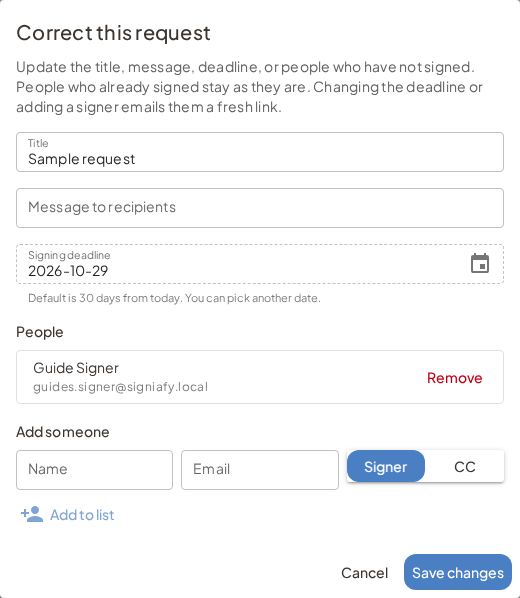
Signed people stay as they are. Finished signatures stay finished. Changing the deadline, or adding someone who is next to sign, sends a fresh invite where needed. Adding CC does not send a signing link. They are emailed the finished file when everyone has signed.
On some same-file layouts you can add CC but not a new signer. If Correct blocks the change, Cancel, then Start a new draft (below). On individual copies, adding another unsigned signer is usually fine.
Cancel a request (Void)
Cancel request stops an open request. On your side the status chip and Activity still say Voided; the page talks about the request as cancelled.
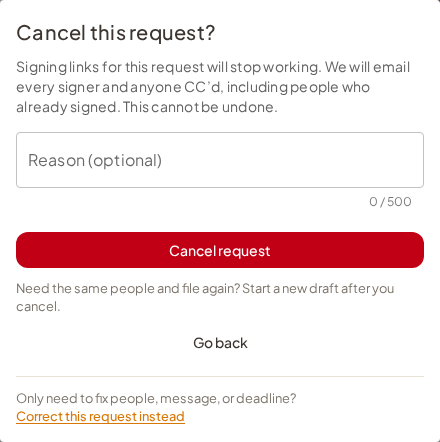
- Unsigned links stop working.
- Every signer is notified, including people who already signed, plus anyone CC’d.
- People who already signed keep what they signed on this cancelled request. That finished work does not move onto a new send.
- The used request still counts against your quota.
When you cancel, you stay on the cancelled page. Downloads and records remain available. Need the same people and file again? Press Start a new draft on that page — it opens Create with the same people and document so you can fix anything and send when ready. Nothing goes out until you press Send. That Send uses another request from your quota.
After you send the new draft, the cancelled request and the new one stay linked on your side (you can jump between them). Finished signatures from the cancelled request never move onto the new send.
Opened Cancel by mistake and only need a people, message, or deadline fix? Use Correct this request instead in the dialog (or Correct on the page).
Wrong PDF or field layout
Correct cannot replace the file or move fields. Cancel the request, then Start a new draft, and replace the upload on Create if the PDF was wrong. Prefer Use template if you already saved the layout and need to fix the template first.
Unsigned links from the old request die. Finished signatures on the cancelled request do not move onto the new send. Everyone who must sign the corrected file signs again on the new request.
Downloads, Activity, and Reopen
- Same file: download the shared finished PDF when complete.
- Individual copies: download one person’s file, or a zip when offered.
- Activity is the timeline for that send (sent, viewed, reminded, corrected, voided, completed, and similar).
- Renew signing appears for expired requests so you can continue with a new deadline and notify people who still need to sign.
- Cancel request also works on expired requests. That marks the request Voided (same as cancelling an open one). Signing links stay closed. People are not emailed again. Cancelled (voided) requests stay cancelled; use Start a new draft (or Use template) instead of Renew.