
Appearance
You got an email asking you to sign. Open the link on a device where you can read the PDF. You do not need a Sonder Sign account.
- Open the link in the email.
- You will see who asked you to sign, and any note they included. Agree to sign electronically when asked.
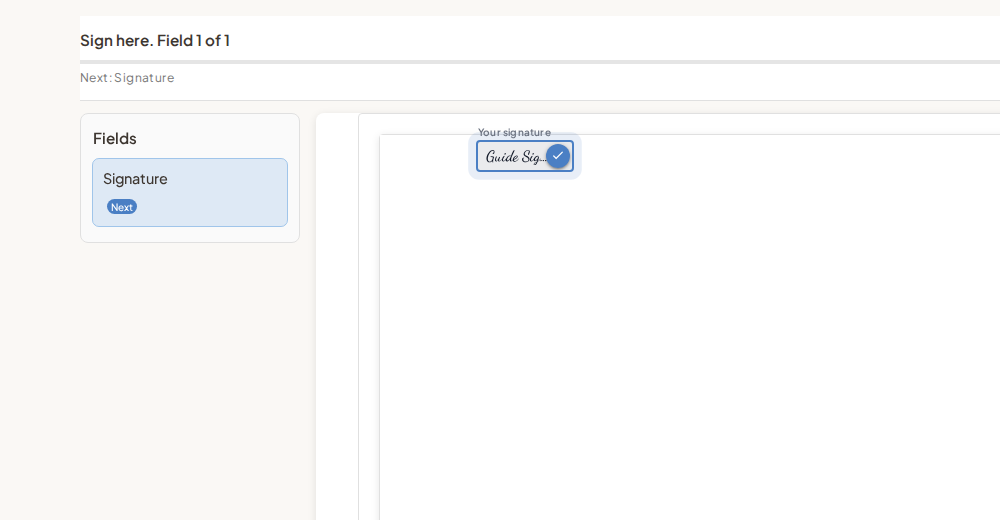
- Tap each signature, initials, or date field to place it. For a text field, type in the box, then apply.
- When every required field is done, choose You're finished. The document opens on the first page. Use Go to first field if your signature is on a later page.
You may get a confirmation and a way to keep the finished file, depending on the request.
If something goes wrong
- Cancelled: the sender stopped the request. Ask them for a new link if they still need your signature.
- Expired: ask the sender to reopen or send again.
- Wrong person or email: tell the sender so they can fix it.
- Need more time: ask the sender to extend the deadline while the request is still open.